


The free version of Easy Social Proof gives you a trust widget — overlapping avatars with a star rating and trust text. For many WordPress sites, that single element is enough to make a measurable difference to conversions.
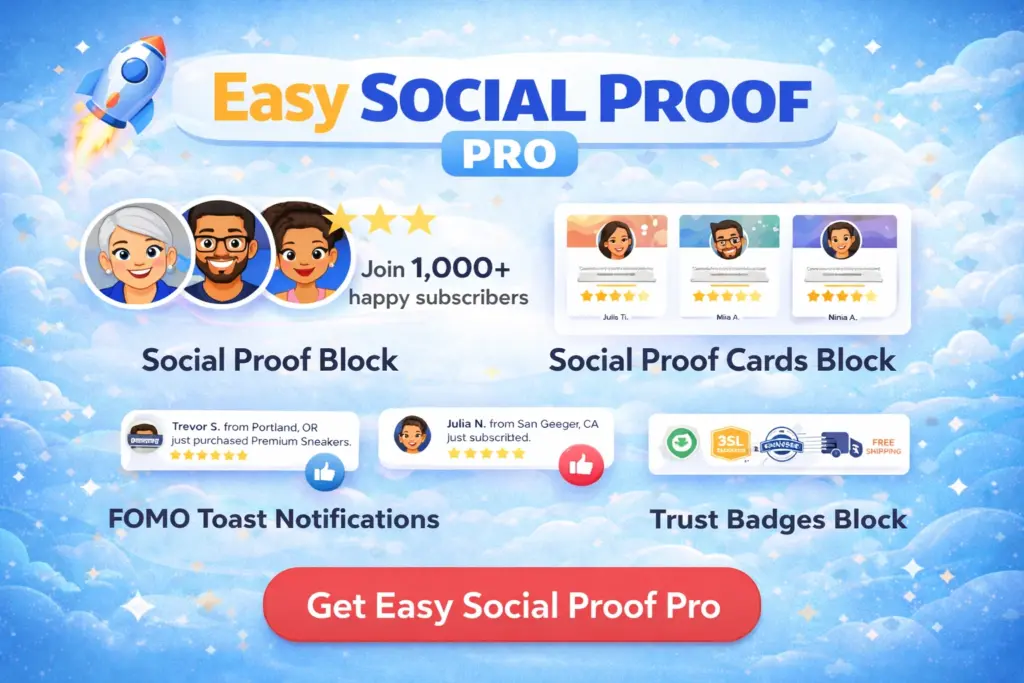
The Pro version adds four capabilities that extend your social proof across the entire customer journey: trust badges for checkout and product pages, review cards for showcasing individual feedback, toast popup notifications that show real-time activity, and AI-generated avatars. It also removes the “Powered by Easy Social Proof” branding from the free version.
This article covers what each Pro feature does, where it fits on your site, and when upgrading makes sense.
Get our FREE compact Easy Socialal Proof Lite WordPress plugin designed using the latest research
Trust Badges
Trust badges are small visual icons that communicate security, guarantees, and reliability. They are most effective near payment forms and calls to action, where visitor anxiety peaks.
The Baymard Institute found that 25% of cart abandonments happen because the visitor does not trust the site with their credit card information. Trust badges placed near the payment form directly address this.
What You Get
Easy Social Proof Pro includes five pre-built trust badges:
- SSL Encrypted / DATA PROTECTION — blue padlock icon
- Money Back / 30-DAY GUARANTEE — green circle icon
- Free Shipping / ON ALL ORDERS — orange delivery truck icon
- Verified Seller / TRUSTED & APPROVED — red shield with checkmark
- Secure Payments / No Credit Card Data Stored – blue credict card with white lock
Each badge has a bold title, subtitle text, and coloured icon — designed to look professional without any design work on your part.
How It Works
Add the Easy Social Proof Badges block in the editor. From the settings panel, you can:
- Select which badges to display — toggle each of the four on or off
- Reorder badges — drag to arrange them in your preferred order
- Customise colours — background colour, text colour, and border colour all have hex colour pickers
- Adjust sizing — badge size (px) and spacing (px) sliders
- Set alignment — centre, left, or right
Where to Place Them
The highest-impact placement is near checkout or payment buttons. Below the Add to Cart button on WooCommerce product pages, next to a pricing table CTA, or in the footer as a baseline trust signal across every page.
For more on trust badge strategy and placement, read How to Add Trust Badges to WordPress.
Review Cards
Review cards display individual customer feedback in a structured grid — each card showing a title, star rating, description text, and an optional avatar.


ProofUnlike the trust widget (which summarises your overall rating in one compact element), review cards show specific voices. They answer “what did people actually say?” rather than “what is the overall rating?”
What You Get
Each review card includes:
- Title — the customer’s name, company, or a label for the review
- Star rating — individual rating for that specific review
- Description text — the customer’s feedback or quote
- Optional avatar — a photo to personalise the card
Cards arrange into a responsive grid. You choose 1, 2, 3, or 4 columns, and the layout adapts to screen size.
How It Works
Insert the Easy Social Proof Cards block, then add individual cards. For each card, enter the title, rating, and description. The block handles layout automatically.
You can control:
- Grid columns — 1, 2, 3, or 4 column layout
- Card background colour — hex colour picker
- Text colour — hex colour picker
- Text alignment — left, centre, or right
- Border width — pixel slider
- Border colour — hex colour picker
Cards can be reordered and removed individually from the sidebar panel.
Flexible Use Cases
Review cards are not limited to customer testimonials. You can use them to display research citations, case study results, or any structured content that benefits from a card grid format. A card with a research paper title and key finding works just as well as one with a customer name and quote.
Tip: Choose reviews that mention specific results rather than generic praise. “Increased our signup rate by 34% in the first month” is worth a card. “Great product!” is not.
For more on selecting and displaying effective testimonials, read How to Display Testimonials on WordPress.
Toast Popup Notifications
Toast popups are small notifications that slide into the corner of the screen showing recent activity: “{name} just subscribed” or “{name} just purchased the Pro plan.”
This is the dynamic, real-time complement to the static trust widget. While the trust widget provides permanent credibility, toast popups show that your site is active right now.
Three Data Sources
Easy Social Proof Pro gives you three ways to populate your toast popups:
WooCommerce orders — pulls real purchase data directly from your store. When a customer completes an order, it becomes a popup automatically. This is the most authentic option for active stores.
SubPress subscriptions — if you use SubPress (the WordPress newsletter plugin), toast popups can display real subscription activity. Ideal for content sites and membership businesses.
Simulated data — generates popups with random names for sites that do not have enough real transaction volume yet. The helper text describes it plainly: “Simulated uses random names. Other sources show real data.” This gets you started while you build up genuine activity.
How It Works
Toast popup settings live in the Easy Social Proof Pro settings page in your WordPress admin (not in the block editor). The settings give you precise control over behaviour:
Display targeting:
- Display On — all pages, homepage only, or selected pages. When you choose “selected pages,” checkboxes appear for each page on your site so you can enable popups exactly where you want them.
Message format:
- Message Template — customise what the popup says. Use
{name}as a placeholder for the customer or generated name. For example: “{name} just subscribed” or “{name} just purchased the Pro plan.”
Timing controls:
- Initial Delay — seconds to wait before the first notification appears (default: 5 seconds). Gives visitors time to orient before popups begin.
- Display Duration — how long each notification stays visible (default: 3 seconds).
- Pause Between Bursts — a random delay between each burst of notifications, with a range slider setting the minimum and maximum pause. This randomness makes the popups feel natural rather than mechanical.
Burst behaviour:
- Max Burst Size — notifications can appear in bursts to simulate real activity patterns. Each burst shows a random number of stacked notifications from 1 up to this value. Set to 1 for single notifications. Higher values (2-3) create the impression of multiple people taking action in quick succession.
- Gap Within Burst — the delay between notifications appearing within a single burst. Shorter values make them appear almost simultaneously.
Appearance:
- Background Colour — hex colour picker (default: blue)
- Text Colour — hex colour picker (default: white)
- Position — dropdown to set which corner of the screen popups appear in (e.g., Bottom Right)
When Toast Popups Make Sense
Toast popups work best when they reflect genuine activity — or at least plausible activity. If you make multiple sales per day, WooCommerce-connected popups create authentic social proof that requires zero maintenance.
For newer sites, simulated popups can bridge the gap while you build real volume. Just keep the message template honest — “{name} just visited” is fine. Do not fabricate specific purchase claims.
They do not work well when:
- Popups appear too aggressively. A notification every few seconds is disruptive, not persuasive. Use the pause controls to keep them subtle.
- They cover important page elements. Bottom Right is the default position for good reason — it stays out of the way.
- You rely on them as your only social proof. Research shows that FOMO popups alone have limited effect. They work best as a supplement to static trust elements like the trust widget and trust badges.
The recommended approach: Use toast popups alongside your trust widget, not instead of it. The widget establishes baseline credibility. The popup adds a layer of live activity. Together, they are more effective than either alone.
For the research on when FOMO tactics help versus when they backfire, read FOMO vs Trust: Which Type of Social Proof Actually Works?.
AI Avatars
The trust widget needs avatar images, and not every business has a library of customer photos. AI avatars generate realistic portrait images that do not belong to any real person — unique faces that look natural without using stock photos visitors might recognise from other sites.
When to Use Them
AI avatars are appropriate when you are a new business without customer photos yet, when your customers prefer privacy, or when you need to represent a diverse customer base visually. They work as illustrative imagery paired with an honest customer count — an avatar stack with AI-generated faces alongside “Trusted by 500+ site owners” represents a real number with visual representation, not fake profiles.
When Not to Use Them
Do not pair AI avatars with fake names and fabricated testimonials. The avatars represent your customer base visually. They are not fake customer identities.
For more on avatar sourcing, read How to Add Customer Avatars to Your Website.
No Branding
The free version displays a small “Powered by Easy Social Proof” link below the trust widget. The Pro version removes this entirely, giving you a clean display with no third-party attribution visible to your visitors.
Free vs Pro: Quick Comparison
Free version includes:
- Trust widget (avatar stack + star rating + trust text)
- Horizontal and vertical layouts
- Up to 10 avatars
- Full colour and text customisation
- Mobile-responsive design
- “Powered by Easy Social Proof” branding
Pro version adds:
- Four pre-built trust badges with customisable colours
- Review cards in responsive grid layout
- Toast popup notifications (WooCommerce, SubPress, or simulated data)
- AI-generated avatars
- No branding
- Priority support
Who Should Upgrade
Upgrade if: You run a WooCommerce store and want trust badges at checkout and toast popups showing real purchases. You want to display individual review cards alongside your trust widget. You need the branding removed for a professional or client site.
Stay on free if: You only need a compact trust widget on your homepage or landing page and the branding link does not bother you. The free version is a fully functional trust signal — it is not a crippled demo.
Getting Started With Pro
If you are already using the free version, upgrading is seamless. Install the Pro plugin, activate your licence key, and the additional features become available. Your existing trust widget keeps its settings — nothing is lost or reset.
If you are starting fresh, follow the Getting Started With Easy Social Proof guide first to set up your trust widget, then explore the Pro features covered in this article.