


eCommerce stores lose roughly 70% of their potential sales to cart abandonment. The reasons are well-documented: unexpected costs, security concerns, complicated checkout, and lack of trust. Social proof directly addresses the trust component — and it is the one factor that costs almost nothing to implement.
This guide covers how to use social proof across an eCommerce store to reduce abandonment and increase conversions at every stage of the buying journey.
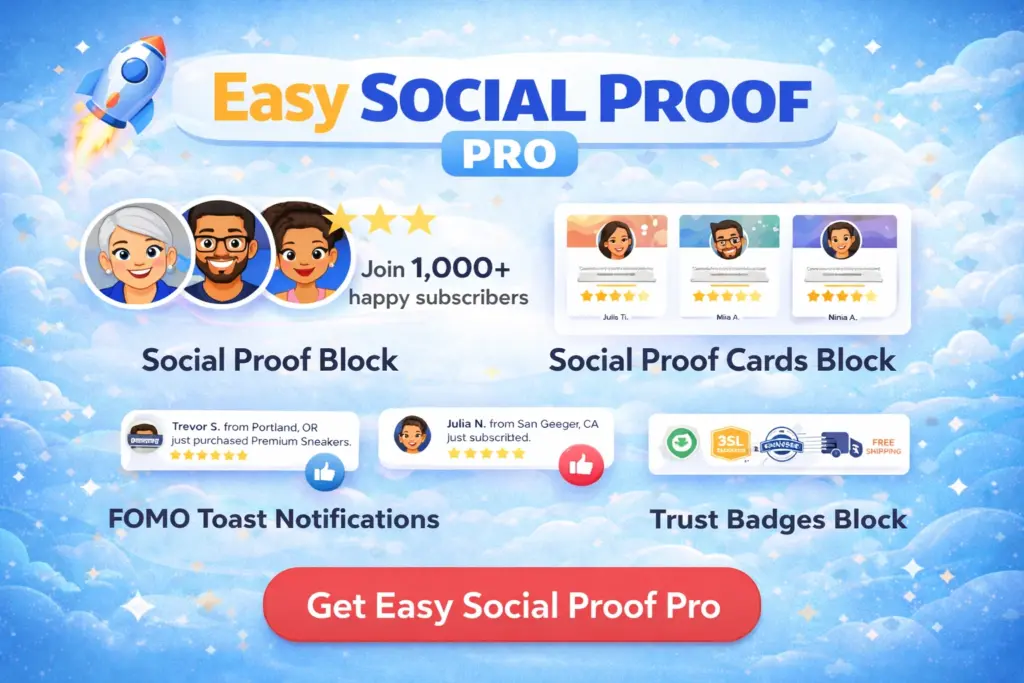
Get our FREE compact Easy Socialal Proof Lite WordPress plugin designed using the latest research
The eCommerce Trust Timeline
An eCommerce visitor goes through distinct stages, and each one has different trust needs:
Arrival (homepage or category page): “Is this store legitimate?” — they need basic credibility signals before they will browse.
Browsing (product pages): “Is this product worth buying?” — they need evidence that other people bought it and were satisfied.
Consideration (cart page): “Am I making the right decision?” — they need reassurance that they will not regret this purchase.
Commitment (checkout): “Is it safe to enter my card details?” — they need security and guarantee signals at the highest-anxiety moment.
Social proof that covers all four stages creates a trust narrative that carries visitors through to purchase. Social proof that only appears at one stage leaves gaps where doubt creeps in.
Stage 1: Homepage Credibility
Trust Widget in the Hero Section
Your homepage trust widget establishes that your store is real, active, and well-regarded. First-time visitors — especially those who found you through an ad or social media rather than a recommendation — need this signal before they invest time browsing.





Effective eCommerce trust text:
- “Trusted by 8,500+ happy customers” — customer count is the primary eCommerce metric
- “4.8 stars from 2,000+ verified reviews” — combining rating with review count
- “Serving 12,000+ customers across the UK” — geographic specificity for local stores
The number should count customers, not orders. “50,000 orders shipped” sounds big but could represent a small number of repeat customers. “8,500 happy customers” communicates breadth of trust.
Review Cards Below the Fold
Three to four review cards on the homepage showcasing different product categories or customer experiences give browsers a taste of what buying from you is like:
- “Shipping was faster than expected — ordered Monday, arrived Wednesday”
- “Quality is incredible for the price. Already ordered a second one.”
- “Best customer service I’ve experienced online. They replaced a damaged item within 24 hours.”
These reviews should represent the store experience, not specific products. Product-specific reviews belong on product pages.
Stage 2: Product Page Persuasion
Product pages are where the real selling happens. WooCommerce has a native review system, but it only displays reviews on the same product page. Easy Social Proof elements supplement this by adding trust signals in positions the native system does not cover.
Trust Widget Near the Product Title
A trust widget near the top of the product page (or in a sidebar) reminds visitors of the store’s overall reputation while they evaluate a specific product. Even if this particular product has only two reviews, the store’s 4.8-star rating from 2,000 reviews provides credibility by association.
Trust Badges Near Add to Cart
This is the critical placement for eCommerce. When a visitor’s mouse hovers over the Add to Cart button, they are making a micro-commitment. Trust badges visible at this moment address the objections that prevent the click:
- SSL Encrypted — “my payment information is safe”
- Money Back / 30-Day Guarantee — “I can return it if it is not right”
- Free Shipping — “there will not be hidden costs at checkout”
Three badges in a row below the Add to Cart button. Clean, recognisable, and directly answering the three biggest product page objections.
For badge setup, read How to Add Trust Badges With Easy Social Proof Pro.
Toast Popups on Product Pages
Toast popups showing recent purchases of the same or similar products create urgency without being manipulative — if the data is real:
- “{name} just purchased this item” — direct product validation
- “{name} just ordered from [Store Name]” — general store activity
With WooCommerce as the data source, these popups reflect genuine transactions. The timing settings matter: too frequent feels aggressive, too rare looks dead. Start with the default 8-20 second pause and adjust based on your order volume.
For popup setup, read How to Set Up Toast Popup Notifications With Easy Social Proof Pro.
Stage 3: Cart Page Reassurance
The cart page is a waiting room where doubt sets in. The visitor has added items but has not committed to paying. This is where “maybe I should think about it” turns into an abandoned cart.
Trust Badges on the Cart Page
Repeat your trust badges on the cart page — SSL Encrypted and Money Back at minimum. The visitor saw them on the product page, but seeing them again at the cart stage reinforces the message. Consistency builds confidence.
Trust Widget as Reinforcement
A trust widget on the cart page or in the sidebar serves as a background credibility signal. It does not need to be prominent — just present. “Trusted by 8,500+ customers” visible while a visitor reviews their cart is a subtle but effective reminder that many other people completed this same purchase.
Stage 4: Checkout Trust
Checkout is the highest-anxiety moment in any eCommerce transaction. The visitor is entering payment details — the point where trust either pays off or fails.
Trust Badges Next to Payment Fields
SSL Encrypted and Money Back badges placed adjacent to the payment form (credit card fields, PayPal button, etc.) directly address the fear of financial loss. The Baymard Institute research on this is clear: visible trust signals near payment fields reduce abandonment.
If your checkout uses the WooCommerce block-based checkout (or you can add blocks to the page), place an Easy Social Proof badges block as close to the payment section as your layout allows.
What Not to Do at Checkout
Do not enable toast popups on the checkout page. A visitor entering their card number does not need distractions. Popups at this stage are more likely to cause accidental clicks away from the page than to provide useful social proof.
The Complete eCommerce Social Proof Setup
| Page | Element | What It Does |
|---|---|---|
| Homepage hero | Easy Social Proof block | Establishes store credibility |
| Homepage below fold | Review cards (3-4) | Shows customer experience |
| Homepage | Toast popups | Signals live activity |
| Product pages | Easy Social Proof block | Reinforces store reputation |
| Product pages | Trust badges (near Add to Cart) | Reduces purchase objections |
| Product pages | Toast popups | Shows product-level demand |
| Cart page | Trust badges | Reassures before commitment |
| Checkout | Trust badges (near payment) | Addresses security anxiety |
Getting Reviews for Your Store
eCommerce stores have a built-in advantage: every order is an opportunity for a review. The challenge is asking for them systematically.
Timing: Request reviews 7-14 days after delivery. Soon enough that the experience is fresh, late enough that they have used the product.
Make it easy: A single link to leave a review. Do not ask them to create an account, verify their email, and navigate to the right product page. One click to a review form.
Ask about specifics: “How was the product quality?” and “How was the shipping experience?” yield better reviews than “Please leave a review.” Specific questions produce specific answers that work as testimonial content.
Follow up once: If the first request gets no response, one reminder is fine. Two or more starts to feel pushy.
For more review-building strategies, read How to Get More Reviews for Your Business.
Common eCommerce Social Proof Mistakes
Social proof only on the homepage. The homepage gets the least purchase-intent traffic. Product pages and checkout are where trust signals convert. Cover the entire journey.
Aggressive FOMO without trust foundation. Stores that lead with popups (“Only 2 left! Sarah just purchased! 15 people viewing this!”) without establishing baseline trust (ratings, reviews, guarantees) come across as manipulative. Trust first, then urgency.
Fake scarcity. “Only 3 left in stock!” when you actually have 500 units is the fastest way to destroy the credibility that social proof builds. If your scarcity is real, display it. If it is manufactured, do not.
Ignoring mobile. Over half of eCommerce traffic is mobile. Check that your trust widget, badges, and popups display correctly on small screens. A trust badge that overlaps the Add to Cart button on mobile creates friction rather than reducing it.
Not updating after growth. If you showed “Trusted by 500+ customers” when you launched and you now have 5,000, you are underselling your credibility. Keep numbers current.
For a complete WooCommerce setup guide, read How to Add Social Proof to WooCommerce With Easy Social Proof.
How to Add Star Ratings to Your WordPress Homepage
How to Add Customer Avatars to Your Website